Running an Analysis
- Hover over a room — its volume and floor turn green and a tooltip shows the room name.
- Click the room to select it. The Result panel opens on the right with a Run simulation button.
- Click Run simulation. The tool extracts the room geometry, windows and floor polygon, sends them to the server, and shows the daylight factor result.
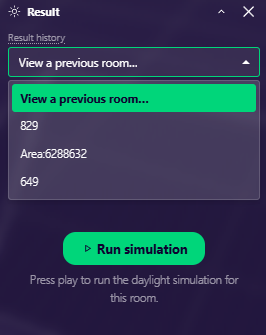
Result history — the dropdown at the top of the panel lists every room already simulated in the current model. Select one to reload its result without running it again. The history is cleared when you press Clear All or close the session.
Simulations are limited to 10 rooms per user per day, shared across sessions, to keep the server responsive.
If a room has no IfcSpace element or no IfcWindow elements, the analysis will not run — see Preparing Your IFC File.
Before trusting a result, check the inputs the tool extracted from your model.