Checking the Inputs
When you select a room, the Room Properties panel shows what the tool extracted from your model. Check it before running the simulation — if the inputs are right, the output should be too. Fix any problem in the IFC and re-load the model.
Check that:
- The obstructions are complete and correct — nothing missing, nothing extra (balconies, overhangs, surrounding buildings). Verify this visually in the 3D view and with the sky obstruction diagram.
- The room and every window have sensible parameters. Pay particular attention to the Frame Ratio: it sets how much of each opening is opaque, and the rest is treated as glass.
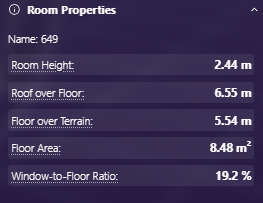
| Field | Meaning |
|---|---|
| Name | IfcSpace name or number |
| Room Height | Floor to ceiling |
| Roof over Floor | Floor to the roof above (top-floor rooms) |
| Floor over Terrain | Height of the floor above ground level * |
| Floor Area | Area of the room floor polygon |
| Window-to-Floor Ratio | Combined 2D area of the room's window openings (glazed and opaque parts) divided by the floor area |
* Ground level is set automatically to the lowest IfcSpace loaded in the model and is shown as the ground grid in the 3D view.
Windows
The Windows section lists every window found in the room. Use the dropdown to inspect each one.
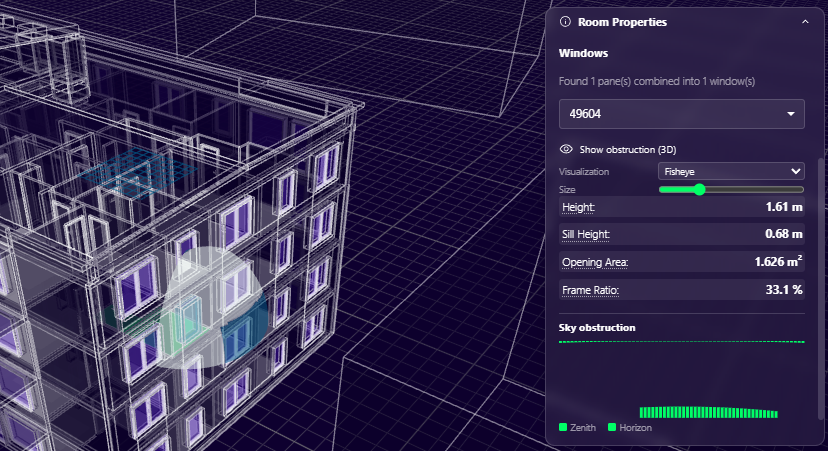
| Field | Meaning |
|---|---|
| Height / Sill Height | Window height, and height of its base above the floor |
| Opening Area | Total 2D area of the window opening (glazed and opaque parts) |
| Frame Ratio | Share of the opening taken up by the frame; the rest is treated as glass |
Show obstruction (3D) draws what blocks the sky from that window. The Fisheye view is a hemispherical projection: light areas are visible sky, dark areas are obstructions (balconies, overhangs, context buildings). The Sky obstruction bar summarises how much sky is blocked from the horizon up to the zenith.